PrecisionCalc
xl
Precision
Get Your Numbers Right
Quick-Start Tutorial
To install xlPrecision 3.0, simply download the file, double-click on it, and follow the instructions. Then, if Excel was running, exit and restart Excel.
Important:
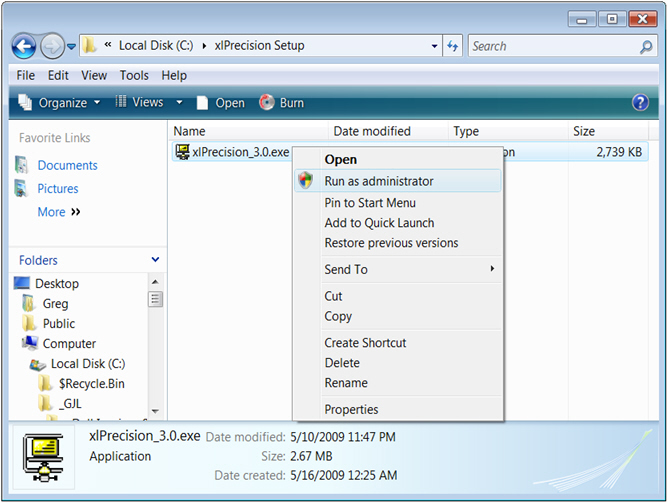
On Windows NT, 2000, XP and Vista, you must be logged in as an Administrator
during installation. On Windows Vista, start Setup by
right-clicking xlPrecision.exe and choosing "Run as
administrator":
After installation, you no longer need to be logged in as an Administrator.
After installing inspector text, start Excel (or restart Excel if it was already running).
To verify that xlPrecision 3.0 is installed and working properly, enter this formula in any spreadsheet cell:
=xlpTEST()
It should return a welcome message with your name and the xlPrecision version. If it instead returns "#NAME!", then xlPrecision is not correctly installed. You may wish to try installing again, or see the Troubleshooting FAQ, or email for help.
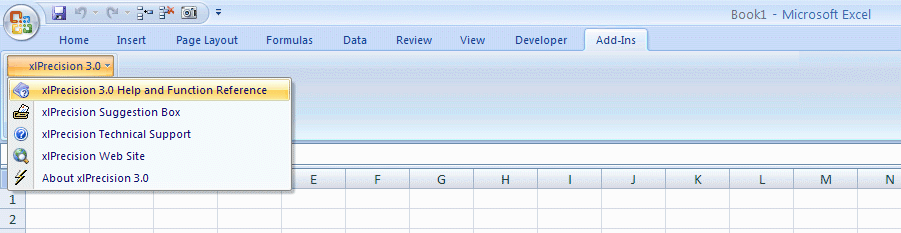
Find xlPrecision's online help by choosing Add-Ins > xlPrecision 3.0 > xlPrecision 3.0 Help and Function Reference:
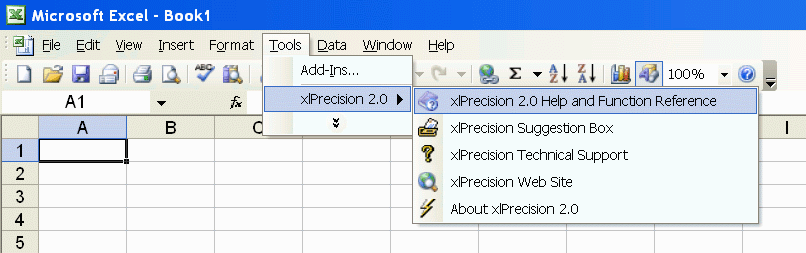
In Excel 2003 and earlier, xlPrecision's online help is in Tools > xlPrecision 3.0 > xlPrecision 3.0 Help and Function Reference:
xlPrecision provides high precision in Excel by replacing Excel's low precision arithmetic operators (+, - *, /, ^), comparison operators, (>, >=, <, <=, =), and some of its worksheet functions (SUM, MEDIAN, RANK, and many others), with custom worksheet functions, such as xlpADD, xlpMULTIPLY, xlpISLESS, xlpMEDIAN, etc. For a complete list of xlPrecision functions, see the Function Reference.
| Unfortunately, Excel does not allow changing the behavior of its built-in operators and worksheet functions, so it is not possible for xlPrecision to apply high precision to your existing worksheet formulas. Using xlPrecision requires modifying your worksheet formulas by replacing Excel's built-in operators with xlPrecision's custom worksheet functions. Of course, you only have to modify those formulas from which you want high precision. |
For example, to get high precision from this worksheet formula:
=2/3
Change the formula to this:
=xlpDIVIDE(2,3)
| Be sure to put a comma (",") between the 2 and the 3, not a slash ("/"). |
| Depending on your world region and language, you might need to use a different character than the comma. Use whatever character you normally use to separate arguments in Excel functions. In many locales, that character is a semi-colon (;). |
The result should be as long as your edition of xlPrecision allows, or the default length of 100 significant digits, whichever is shorter. For example, if you are using the 35SD edition, the result should be 35 significant digits long, like this:
0.66666666666666666666666666666666667
| xlPrecision results are returned as text that look like numbers,
not as values that Excel recognizes as numbers. This is because Excel would
immediately truncate the results to 15 significant digits if it recognized them as numbers. You can use the results of xlPrecision formulas as the operands in other xlPrecision formulas, but using them as operands in Excel's arithmetic functions will truncate them to 15 significant digits. |
If you have a complex formula with more than one arithmetic operator or comparison operator, you may need to replace them all with xlPrecision functions. For example, in this formula, Excel discards the high precision returned by xlpDIVIDE when it evaluates the subtraction with Excel's built-in operator, the minus sign:
=xlpDIVIDE(A1,B1)-C1
To maintain high precision in that example, replace the minus sign with xlpSUBTRACT:
=xlpSUBTRACT(xlpDIVIDE(A1,B1),C1)
If you don't specify how many significant digits you want, you'll get either 100 or 5 less than the maximum allowed by your xlPrecision edition, whichever is less.
You can specify any number of significant digits up to 32,767. For example, to get 1,000 significant digits, change the formula to this:
=xlpDIVIDE(2,3,,,,,1000)
If you specify more significant digits than your xlPrecision edition allows, then you'll get the maximum allowed by your edition.
Alternatively, you can specify fewer significant digits to speed up calculation.
xlpADD(), xlpSUBTRACT(), xlpMULTIPLY(), xlpROOT(), and xlpPOWER() all work essentially the same way as xlpDIVIDE():
|
Change this: |
To this: |
| =2+3 | =xlpADD(2,3) |
| =2-3 | =xlpSUBTRACT(2,3) |
| =2*3 | =xlpMULTIPLY(2,3) |
| =2/3 | =xlpDIVIDE(2,3) |
| =2^(1/3) | =xlpROOT(2,3) |
| =2^3 | =xlpPOWER(2,3) |
The comparison operators are similar too:
|
Change this: |
To this: |
| =2=3 | =xlpISEQUAL(2,3) |
| =2<>3 | =xlpISNOTEQUAL(2,3) |
| =2>3 | =xlpISGREATER(2,3) |
| =2>=3 | =xlpISGREATEROREQUAL(2,3) |
| =2<3 | =xlpISLESS(2,3) |
| =2<=3 | =xlpISLESSOREQUAL(2,3) |
xlPrecision is capable of using operands (your input numbers) with up to 32,767 significant digits. But to prevent Excel from truncating them to 15 significant digits, you'll need to enter the operands as text instead of as a number:
Right-click cell A1 and choose Format Cells,
On the Number tab, in the Category listbox, select Text (not Number).
In cell A1, enter 123456789123456789123456789.
In cell A2, enter =xlpADD(A1,A1)
Alternatively, you can enter long operands within the formula by enclosing them with double-quotes so that Excel treats them as text rather than as numbers. For example, change the above formula to this:
=xlpADD("123456789123456789123456789","123456789123456789123456789")
Most xlPrecision functions also optionally allow:
For example, here's how it's done with xlpADD(), xlpSUBTRACT(), xlpMULTIPLY(), xlpDIVIDE(), xlpROOT(), and xlpPOWER():
|
Argument Name |
Description |
Settings |
Default |
Example |
| format_negative | Determines whether negatives are formatted with a leading hyphen ("-"), or parentheses ("()"). | Set to 1 to format negatives with a leading hyphen. Set to 2 for parentheses. | 1 |
=xlpSUBTRACT(2,3,2) Returns "(1)" instead of default "-1". |
| format_thousands | Determines whether thousands separators are included. | Set to TRUE to include thousands separators. | FALSE |
=xlpMULTIPLY(200,300,,TRUE) Returns "60,000" instead of "60000" (or other thousands separator character depending on Region setting in Windows Control Panel). |
| format_currency | Determines whether currency symbol is included. | Set to TRUE to include currency symbol. | FALSE |
=xlpADD(2,3,,,TRUE) Returns "$5" instead of "5" (or other currency symbol depending on Region setting in Windows Control Panel). |
| exponential_notation | Determines whether result is formatted in exponential notation. | Set to TRUE to format result in exponential notation. | FALSE |
=xlpADD(20000,300000,,,,TRUE) Returns "3.2E+5" instead of default "320000". |
| maximum_significant_digits | Determines the maximum number of significant digits to be returned. | 1 - 32767 | Depends on xlPrecision edition. |
=xlpDIVIDE(2,3,,,,,20) Returns 0.66666666666666666667.
|
These optional arguments can be used in any combination desired. For example, this function:
=xlpDIVIDE(-20000,3,2,TRUE,TRUE,TRUE,20)
Returns this:
($6.66666666666666666666E+3)
Not all of these options are available with all xlPrecision editions. See the Buy page for a table showing which features are available with each edition.
| xlPrecision includes many other functions; 73 in all. Some xlPrecision functions use different syntax than shown above for their formatting options, and some have other options not shown here. For detailed information on using each one, including exact examples showing how to use them, see the Function Reference entries for each xlPrecision function. |
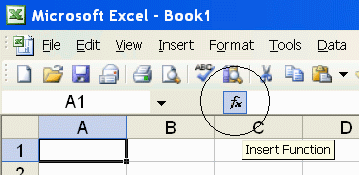
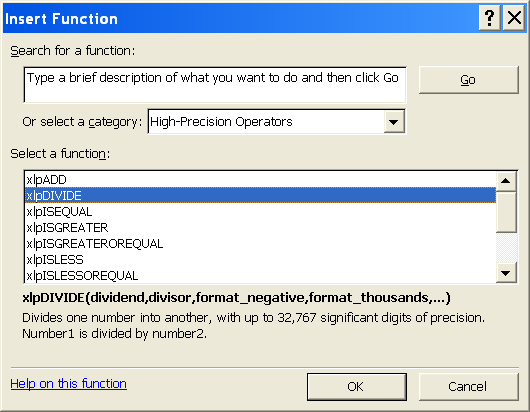
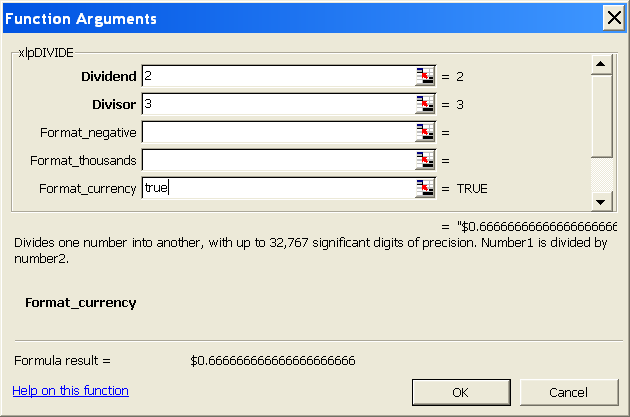
If you are using the 1,500 SD or higher edition, or the Free Edition, of xlPrecision, you can use Excel's Insert Function dialog to insert xlPrecision functions more conveniently than typing them in directly:
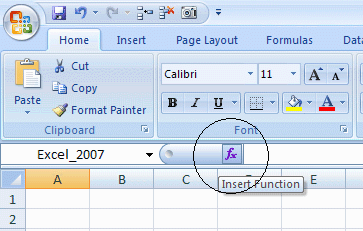
Using the Insert Function dialog with xlPrecision functions requires the 1,500 SD or higher edition, or the Free Edition, of xlPrecision. Not recommended with the Free Edition as it causes the Free Edition dialog to appear multiple times.
Using Excel's Insert Function Wizard can be slow because Excel recalculates the function every time a digit or character is entered in the Wizard. To speed up that process, enter "0" for all numeric operands (such as num and rt for xlpROOT), so that the function does not take long to calculate. Then, when done with the Wizard, manually change the numeric operands to the desired numbers directly in the worksheet.
xlPrecision offers many additional features that take you beyond Excel's capabilities in other ways. See Data Control & Analysis Features.
This has been a quick tutorial intended to get you started immediately. For more detail, please see:
For helpful tips on using xlPrecision, see:
For more detail on usage and syntax, please see:
For help on troubleshooting common problems, see:
A mathematician is a person who says that when 3 people are supposed to be in a room but 5 come out, 2 have to go back in so the room can be empty.